IT Service Desk and Customer Support
Connect to employee or customer devices to review issues, adjust settings, and resolve technical problems without an on-site visit.
 Call Sales: +81 5017213107
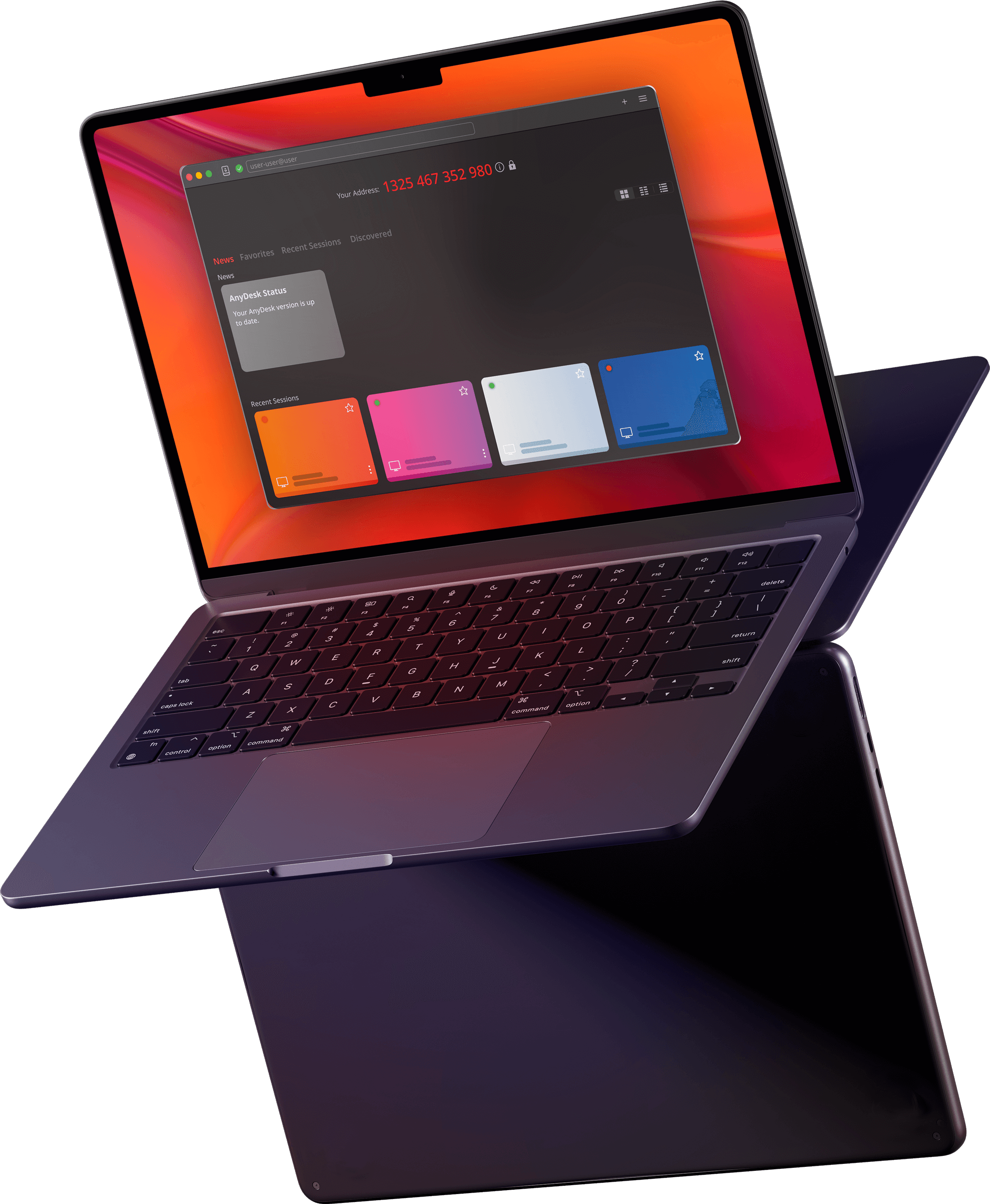
Access computers, servers, and mobile devices from anywhere for remote work, technical support, unattended maintenance, and secure collaboration.
Connect office computers, servers, mobile devices, and unattended endpoints
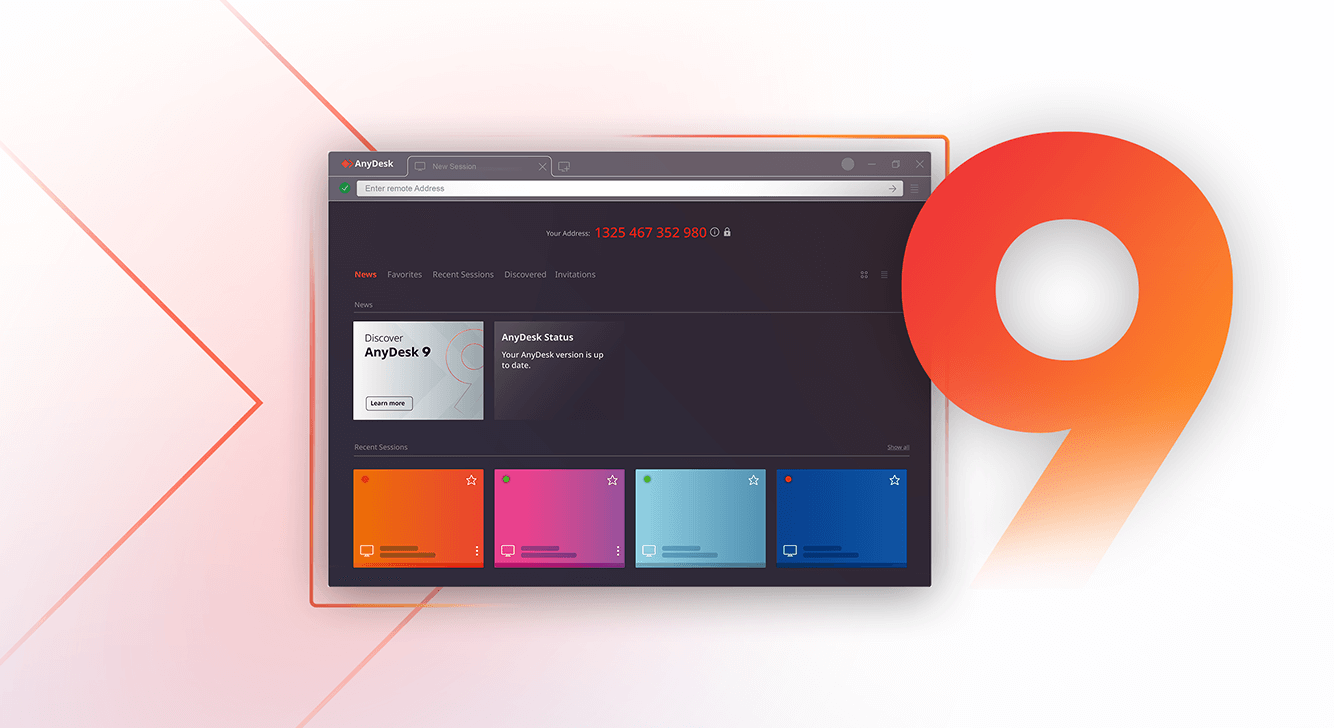

Remote Access Scenarios
AnyDesk brings remote control, screen sharing, file access, and session permissions into one platform for individuals, support teams, and distributed organizations.
Connect to employee or customer devices to review issues, adjust settings, and resolve technical problems without an on-site visit.
Access office computers, files, applications, and business systems from home, while traveling, or from another workplace.
Maintain authorized servers, workstations, kiosks, and distributed endpoints without requiring someone at the remote device.
Connection Security


Connection Process
Use the AnyDesk address or a session invitation to select the computer or endpoint you need to access.
The remote user accepts the request, or an authorized user completes unattended access authentication.
Use the approved permissions to control the screen, transfer files, provide support, or maintain the device.

Connect to attended devices

Maintain authorized systems

Manage users and endpoints
Use cloud infrastructure or deploy within your own environment according to network architecture, data control, and operational requirements.
Connect computers, servers, smartphones, tablets, and compatible endpoints across different operating systems and locations.
Configure client appearance, available features, permissions, and deployment settings for different users and support workflows.

Teams and Use Cases
From occasional assistance to large-scale endpoint management, teams can configure remote access around their devices, users, and operational requirements.
Connect to employee devices to review software issues, system settings, and everyday technical problems without traveling on site.
Use session invitations and support requests to connect with customers, reproduce issues, and guide them through solutions.
Access an office computer, business applications, and work files while at home, traveling, or working from another location.
Use unattended access to maintain servers, workstations, kiosks, and other authorized systems outside regular office hours.
Share screens, demonstrate software, and provide remote guidance to learners, educators, and distributed training groups.
Organize users, permissions, address books, clients, and session records for structured access across distributed endpoints.
FAQ
AnyDesk is cross-platform remote desktop software for accessing computers, servers, and mobile devices. It can be used for remote control, screen sharing, file transfer, IT support, and unattended maintenance.
A user enters the address of the remote device and sends a connection request. The remote user accepts the session and selects permissions, or an authorized user authenticates through unattended access.
Yes. Unattended access can be configured for authorized office computers, servers, workstations, and dedicated endpoints that need to be reached without someone accepting each request.
AnyDesk provides clients for major desktop and mobile platforms, including Windows, macOS, Linux, Android, and iOS. Available control features may vary by platform and system permissions.
Depending on the selected license and deployment model, organizations can manage users, permissions, devices, address books, custom clients, and remote support workflows.
Only accept requests from trusted users, protect unattended access with a strong password, enable two-factor authentication where available, and grant only the permissions required for the session.
Use AnyDesk for remote work, technical support, file access, server maintenance, and unattended endpoint management.