Remote Control and Screen Sharing
View a remote desktop and use approved keyboard, mouse, or view-only permissions for support, work, demonstrations, and guided collaboration.
 Call Sales: +81 5017213107
AnyDesk Remote Desktop
Connect to authorized computers, servers, and mobile devices to view remote screens, control systems, transfer files, provide technical support, and maintain unattended endpoints.
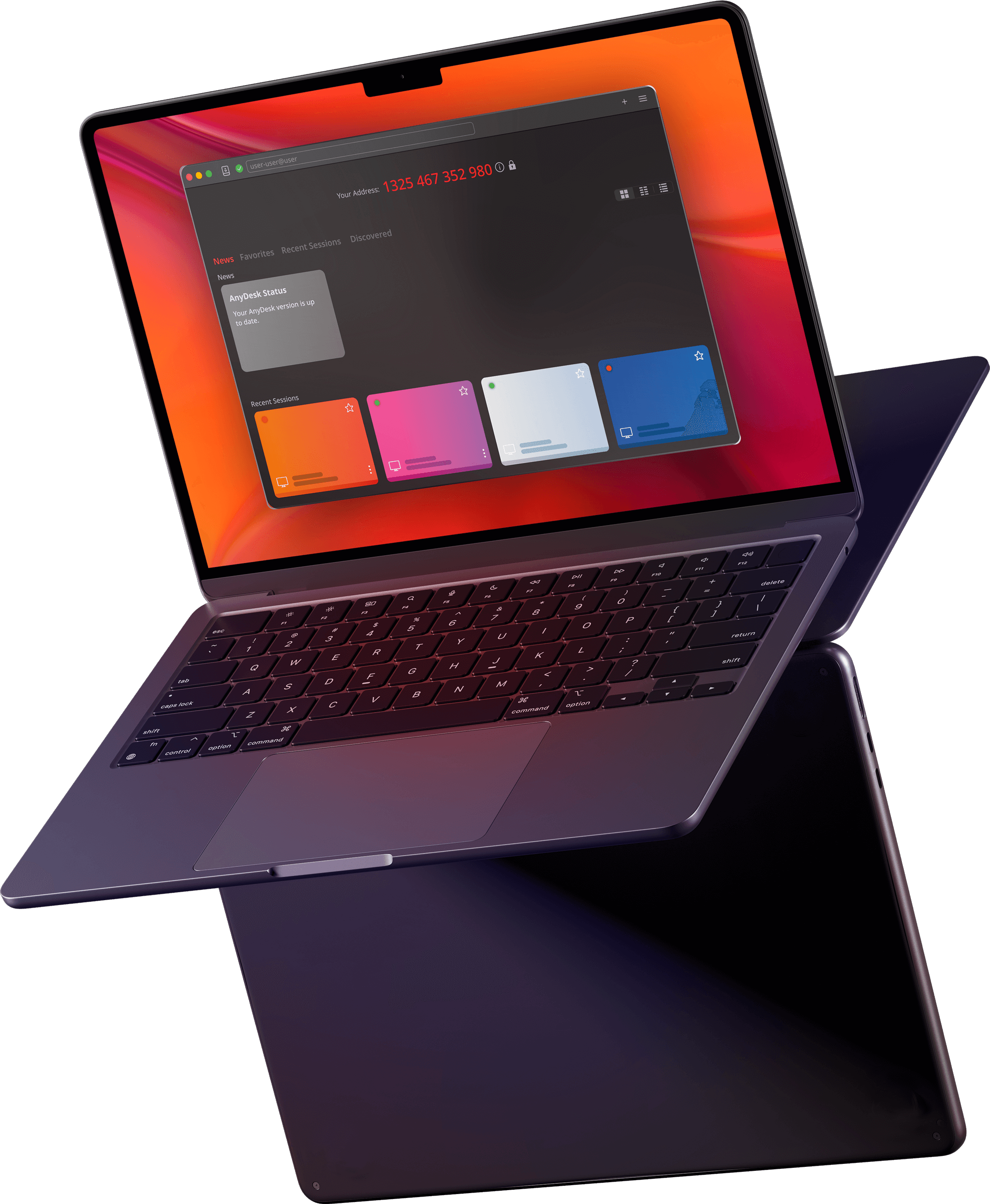

Remote Desktop Capabilities
View a remote desktop and use approved keyboard, mouse, or view-only permissions for support, work, demonstrations, and guided collaboration.
Use session approval, access credentials, device verification, and permission settings to control who can connect and which actions are available.
Exchange files and use supported session tools such as clipboard access, remote printing, chat, whiteboard features, and session recording.
Use Cases
AnyDesk supports attended and unattended connections, helping employees, support professionals, and administrators complete remote access tasks across different locations.
Access an authorized office computer, work files, applications, and business systems from home, while traveling, or from another workplace.
Connect to employee or customer devices to review software issues, adjust settings, and resolve technical problems without an on-site visit.
Configure authorized servers, office computers, workstations, and dedicated endpoints for maintenance when no remote user is present.
Establish remote sessions across Windows, macOS, Linux, Android, iOS, and other compatible desktop or mobile environments.
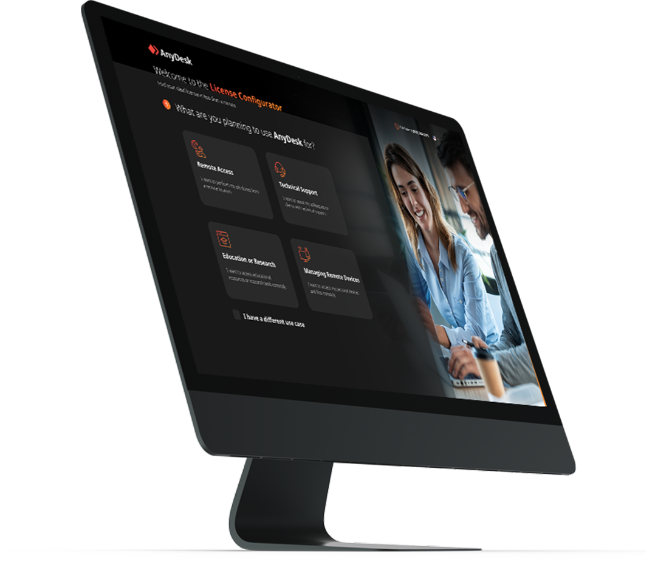
Access and Management
Configure connection methods and session permissions according to the device, user, and task, from temporary support sessions to unattended maintenance and enterprise endpoint administration.


Connection Process
Use the AnyDesk address or a session invitation to select the computer or endpoint you need to access.
The remote user accepts the request, or an authorized user completes unattended access authentication.
Use the approved permissions to control the screen, transfer files, provide support, or maintain the device.
Remote Desktop FAQ
AnyDesk remote desktop connects compatible devices over a network so users can view a remote screen and, when authorized, control input, transfer files, provide support, or maintain systems.
Open AnyDesk on both devices, enter the address of the remote computer, and send a request. The remote user must accept the session and grant control permissions.
Yes. Authorized users can configure unattended access for office computers, servers, workstations, and dedicated endpoints that need to be reached without manual approval.
Depending on the selected license and deployment model, organizations can manage users, devices, address books, custom clients, access permissions, and remote support workflows.